


Overview
iPhone introduced the world with a touch interface, making a debut as a revolutionary device with a wide range of features offering convenience for users. While iPhone owners across the globe are less as compared to Android devices, the joy and luxury of owning the delicate gadget from Apple is definitely above anything.
Over the course of years, users browse the internet in search of answers to help them conveniently use their iPhones and other Apple devices. One such that has gained immense popularity is screen recording. Whether you want to capture a tutorial, showcase a gaming achievement, or simply record a memorable moment on your device, the iPhone’s built-in screen recording functionality can be a powerful tool.
Here, we have explained how to screen record on iPhone for every version released to date, ensuring that users of all iPhone models can unlock this versatile capability.
iOS 11 and iPhone 8/8 Plus/X (2017)
Screen recording made its debut with iOS 11, offering users an easy way to capture their device’s display. To initiate screen recording on the iPhone 8, 8 Plus, or X, follow these steps:
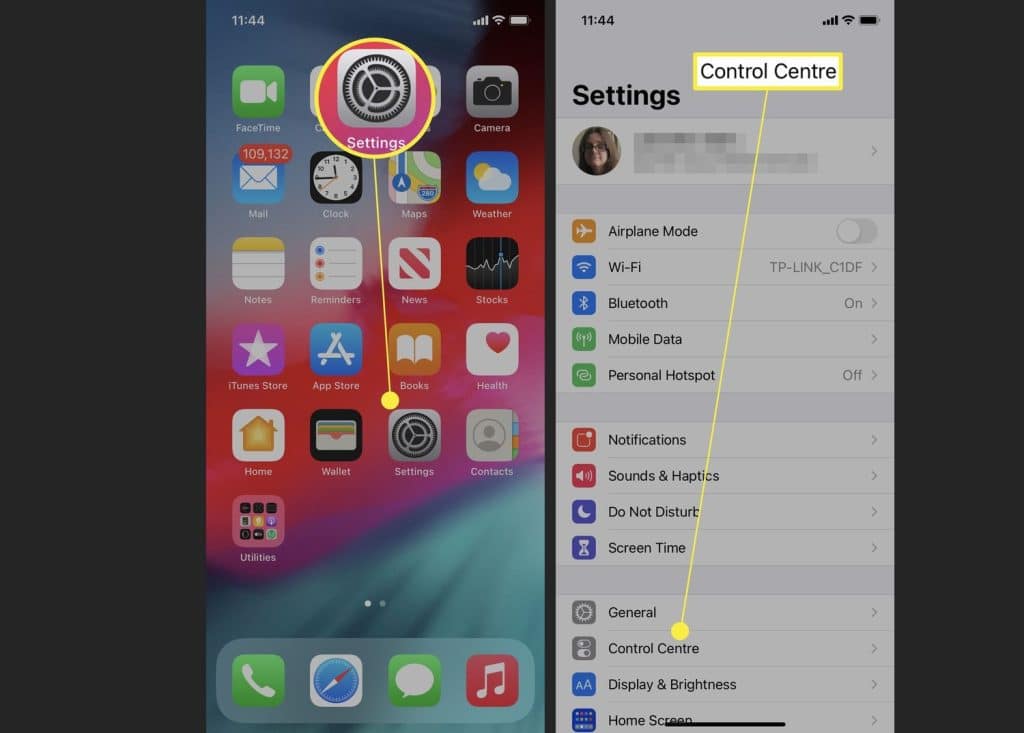
- Open the “Settings” app.
- Scroll down and tap on “Control Center.”
- Tap on “Customize Controls” and add “Screen Recording” to the Control Center.
- Swipe up from the bottom of the screen to access the Control Center.
- Tap the circular record button to start screen recording.
- A red indicator in the status bar confirms the recording. To stop, tap the red indicator, and a confirmation prompt will appear.
iOS 12 and iPhone XR/XS/XS Max (2018)
With the introduction of iOS 12 and the new iPhone XR, XS, and XS Max, screen recording remained a staple feature. The steps to screen record remained consistent with iOS 11, and users could access the feature through the Control Center as before.
iOS 13 and iPhone 11/11 Pro/11 Pro Max (2019)
iOS 13 brought about improvements and refinements, enhancing the overall user experience. Screen recording remained a steadfast feature, and users of the iPhone 11 series could initiate screen recording by following the same steps outlined for iOS 11 and 12.
iOS 14 and iPhone 12/12 Mini/12 Pro/12 Pro Max (2020):
With the arrival of iOS 14 and the iPhone 12 series, Apple continued to refine its operating system and device capabilities. Screen recording on iOS 14 remained unchanged, accessible through the Control Center. Users of the iPhone 12 series could seamlessly record their screens following the steps outlined for previous versions.
iOS 15 and iPhone 13 Mini/13/13 Pro/13 Pro Max (2021):
iOS 15 brought a fresh look and additional features to the iPhone experience. Screen recording, however, maintained its presence and accessibility through the Control Center. Users of the iPhone 13 series can record their screens with ease, following the same steps established since iOS 11.
iOS 16 and iPhone 14/14 Pro/14 Pro Max (2022)
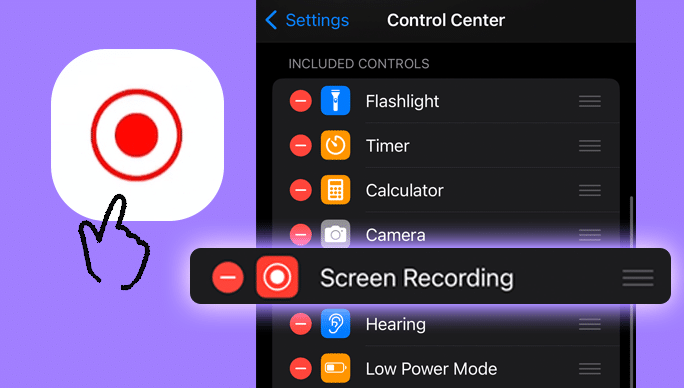
How to screen record on iPhone? With iPhone 14, use the built-in screen recorder and ensure your phone has iOS 16 installed. In the Settings, select Control Centre, tap “Customize Controls” and add “Screen Recording”.
Swipe down from the home screen, access Control Centre and tap the Screen Recording icon The recorder will count down from 3 before starting. To stop, tap the red recording timer and find the recording in your camera roll to edit it or use the free iMovie app on your iPhone to edit it.
iOS 17 and iPhone 15 (All Versions) – 2023
Enable the screen recording button to activate the screen recording feature in the Control Centre. Follow the settings given below:
- Enabling Screen Recording Button in Control Centre
- Launch the Settings app.
- Tap on the control center
- Swipe from the top right corner to open the control center.
- Locate the circle icon at the bottom
- Click on the screen record icon.
- Tap on the Start Recording.
- To stop the scene record tap on stop Recording.
How to Screen Record on iPhone with Sound
iOS 11 and iPhone 8/8 Plus/X (2017)
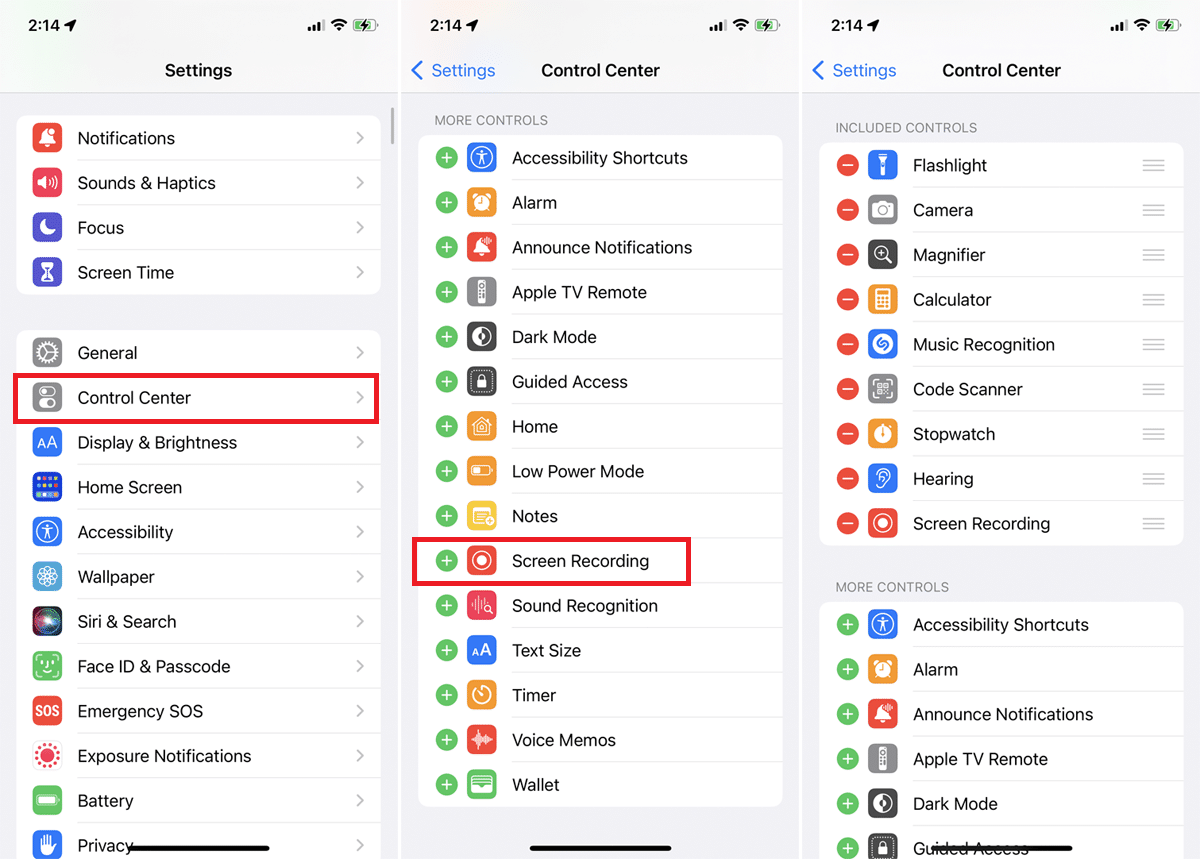
- Open the “Settings” app.
- Tap on “Control Center.”
- Select “Customize Controls” and add “Screen Recording” to the Control Center.
- Swipe up from the bottom of the screen to access the Control Center.
- Force touch or long-press the screen recording icon.
- A menu will appear, allowing you to toggle on “Microphone Audio.”
- Tap the circular record button to start screen recording with sound.
iOS 12 and iPhone XR/XS/XS Max (2018)
The process for screen recording with sound on iOS 12 and the iPhone XR, XS, and XS Max is identical to iOS 11. Follow the steps mentioned above, ensuring the microphone audio toggle is enabled for capturing sound during screen recording.
iOS 13 and iPhone 11/11 Pro/11 Pro Max (2019)
With iOS 13, Apple streamlined the process:
- Access the Control Center.
- Force touch or long-press the screen recording icon.
- Toggle on the microphone icon for audio recording.
- Start and stop the recording using the circular button.
iOS 14 and iPhone 12/12 Mini/12 Pro/12 Pro Max (2020)
iOS 14 maintained the same procedure for screen recording with sound:
- Open Control Center.
- Long-press or force touch the screen recording icon.
- Enable the microphone icon for audio recording.
- Start and stop recording using the circular button.

iOS 15 and iPhone 13 Mini/13/13 Pro/13 Pro Max (2021)
The process on iOS 15 is consistent:
- Access Control Center.
- Long-press or force touch the screen recording icon.
- Toggle on the microphone icon.
- Start and stop recording with the circular button.
iOS 16 and iPhone 14 Series (2022)
Apple maintained the existing screen recording with sound functionality. Users can expect a similar process with potential refinements or additional features.
iOS 17 and iPhone 15 Series (2023)
Screen recording with sound remained a user-friendly process with the recent iPhone and iOS version backed with potentially enhanced customization options and advanced audio capture capabilities.
Now that we’ve answered “How to screen record on iPhone”, it’s time to capture some beautiful shots and interface display with your super luxury Apple device on the go.
