

Learn the Basics of Powering ON and OFF Your Apple’s Device
The iPhone 13 represented a culmination of cutting-edge technology and user-centric design, setting a new standard for excellence while outshining its predecessors in several key areas. A key aspect of using any smartphone is knowing how to turn it ON and OFF. Let’s explore the various methods on how to turn OFF iPhone 13 as well as how you can power it up again to help you navigate your device seamlessly.
How to Turn ON iPhone 13
Method 1: Using the Side Button
The most straightforward way to turn on your iPhone 13 is by using the side button, which is located on the right side of the device. Follow these steps:
- Locate the side button on the right edge of your iPhone 13.
- Press and hold the side button until you see the Apple logo on the screen.
- Release the button, and your iPhone 13 will boot up.
Method 2: Wireless Charging
If your iPhone 13 supports wireless charging, you can power it up again by placing the device on a Qi-compatible wireless charger. Ensure the charger is plugged in and functional, then position your iPhone 13 on the charging pad. The device will power up automatically.
How to Turn OFF iPhone 13
Method 1: Side Button and Volume Buttons
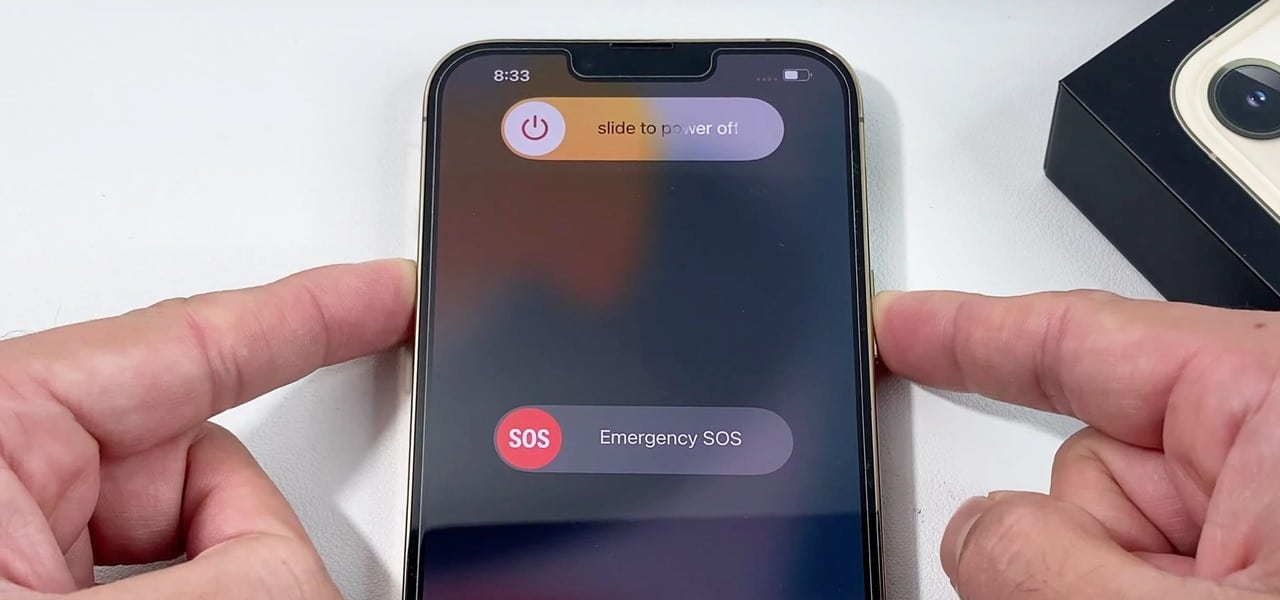
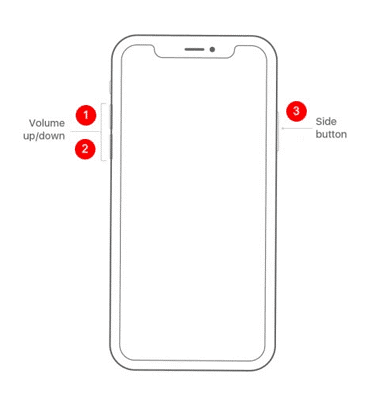
Turning off your iPhone 13 using the hardware buttons involves a combination of the side button and the volume buttons. Follow these steps:
- Press and hold the side button along with either the volume up or down button simultaneously.
- Continue holding the buttons until the “slide to power off” slider appears on the screen.
- Drag the slider to the right to power off your iPhone 13.
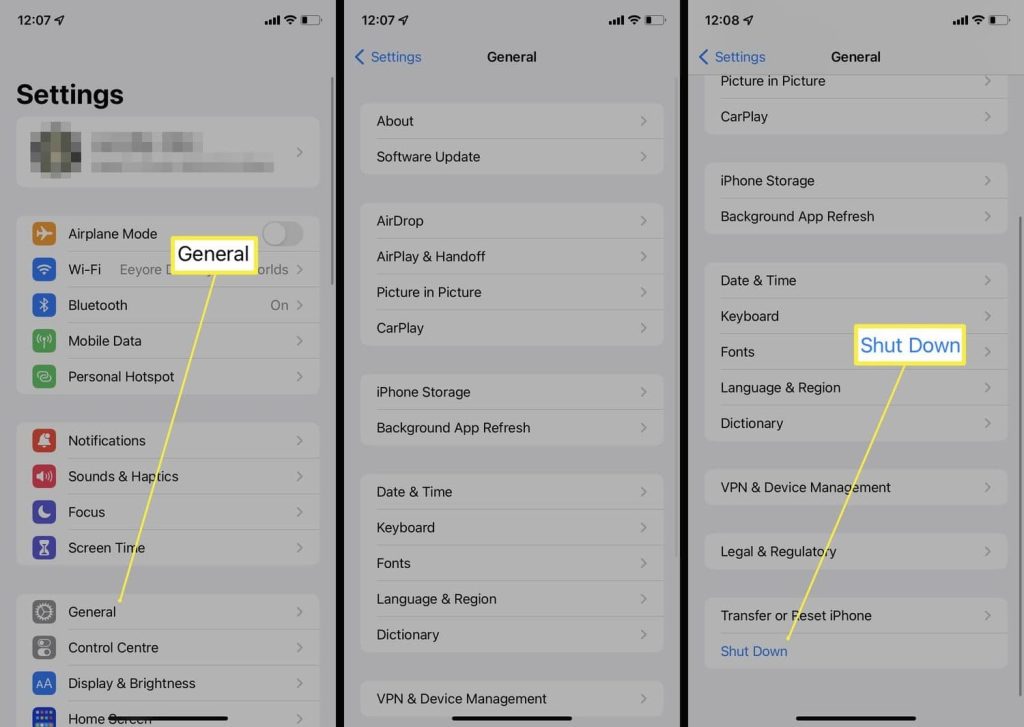
Method 2: Using Settings
Alternatively, you can power off your iPhone 13 through the Settings app. Here’s how:
- Open the Settings app on your iPhone 13.
- Scroll down and tap on “General.”
- Scroll to the bottom and tap “Shut Down.”
- Swipe the slider to power off your device.
Method 3: Assistive Touch
If your device’s physical buttons are not working correctly, you can use AssistiveTouch to turn off your iPhone 13. Here’s how to enable AssistiveTouch:
- Go to Settings > Accessibility > Touch > AssistiveTouch and turn it on.
- A virtual button will appear on your screen; tap it to open the menu.
- Tap “Device” and then press and hold the “Lock Screen” icon until the “slide to power off” slider appears.
- Slide to power off your iPhone 13.
Provided below is a comparison table bearing the methods for powering off various iPhone models along with brief descriptions of each process:
| iPhone Model | Power Off Method 1 | Power Off Method 2 | Power Off Method 3 |
| iPhone 13 | Side button + Volume button combination | Settings app | AssistiveTouch |
| iPhone 12 | Side button + Volume button combination | Settings app | AssistiveTouch |
| iPhone 11 | Side button + Volume button combination | Settings app | AssistiveTouch |
| iPhone XS/XR | Side button + Volume button combination | Settings app | AssistiveTouch |
| iPhone X | Side button + Volume button combination | Side button + Volume button | AssistiveTouch |
| iPhone 8/8 Plus | Side button + Volume button combination | Settings app | AssistiveTouch |
| iPhone 7/7 Plus | Power button + Volume down button | Settings app | AssistiveTouch |
| iPhone 6s/6s Plus | Power button + Home button combination | Settings app | AssistiveTouch |
| iPhone SE (2nd Gen) | Side button + Volume button combination | Settings app | AssistiveTouch |
| iPhone SE (1st Gen) | Power button + Home button combination | Settings app | AssistiveTouch |
